Audiences, Stickiness, and a Management API in RocketFlag 2.9
RocketFlag 2.9 adds Audiences for targeting flags by attributes like plan or country, sticky percentage rollouts, and a Management API with API tokens for Teams and Enterprise.
Published on October 2, 2026

Yesterday, RocketFlag 2.9 was released. And it’s the beginnings of a lot of exciting features to come. All with the same flat, fixed-price promise.
The short, TL;DR of the new features is:
- Audiences, for targeting a flag by attributes such as plan or country. Available on Teams and Enterprise, including Teams trials, as a preview.
- Sticky percentage rollouts, so the same user gets the same answer every time.
- A Management API with API tokens, for changing flags from scripts and CI. Available on Teams and Enterprise, as a preview.
It also changes how cohorts interact with percentage rollouts, and fixes a few things in the group flag editor. Here’s the details if you want to get into the nitty gritty.
First up:
Audiences
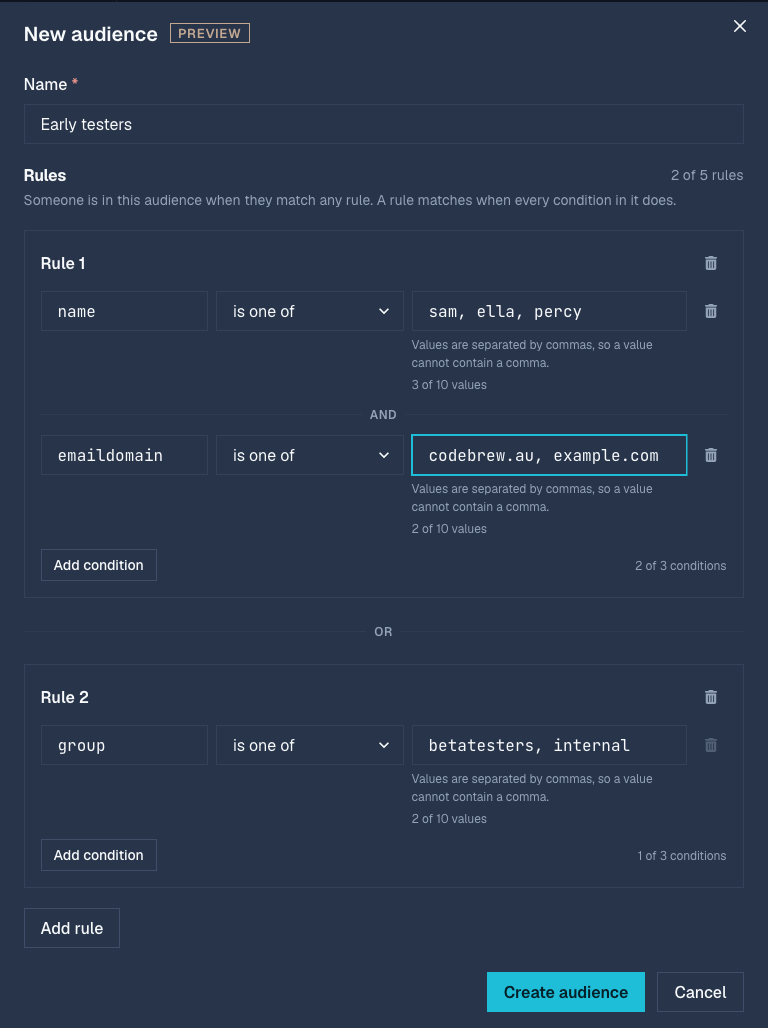
Whilst it was hard to pick which of the features was my favourite, the audience probably wins out, but only just. An audience is a named set of rules over attributes of a request, such as plan, country or region. You create audiences on the new Audiences tab of a project, then attach one to any flag. On a group flag, you attach it per environment, so staging and production can target different people.
Audiences are available on Teams and Enterprise, and to organisations on a Teams trial. They belong to organisation projects, so personal projects can’t have them.
Rules are OR’d and the conditions inside a rule are AND’d. For example:
| Rule 1 | plan is one of pro, team and country is one of AU |
| Rule 2 | plan is one of enterprise |
This matches pro or team customers in Australia, plus anyone on enterprise.
There are three operators: is one of, is not one of and starts with. Matching is exact and case-sensitive. An attribute the request doesn’t include never matches, including for “is not one of”, so if “no plan” should count as free, send plan=free.
Here’s what it looks like:
Your app sends attributes as query parameters on the evaluation request:
curl "https://api.rocketflag.app/v1/flags/ABC123def456?plan=pro&country=AU"
The official SDKs will support these custom attributes in the coming days, so for now this means calling the API directly. Attributes are only used for matching and aren’t saved. They do travel in the URL, though, so stick to coarse values like plan or region rather than personal data. If you need something more specific, you can always do what I’ve seen some customers do and store the value on RocketFlag as an encrypted user attribute and include the encrypted value as an attribute in the request.
Each project can have up to 10 audiences. Each audience can have up to 5 rules, each rule up to 3 conditions, and each condition up to 10 values.
In the console:
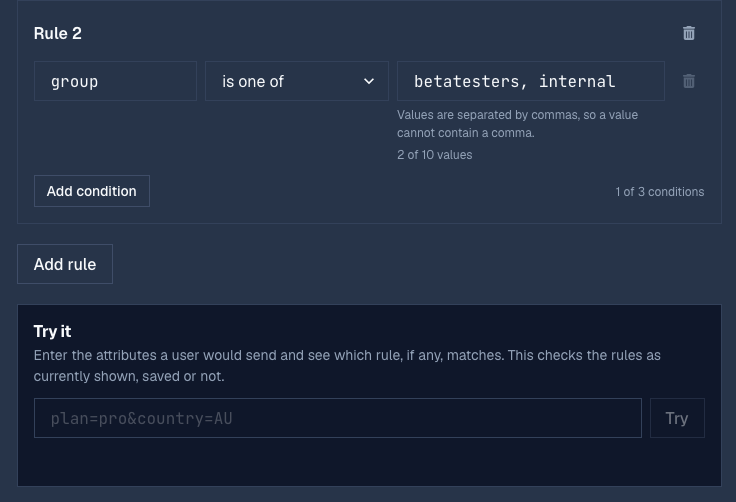
- Try it. The audience editor has a Try it panel. Paste a query string such as
plan=pro&country=AUand it shows whether the rules currently on screen match and which rules matched (for example “Matched rules 1 and 2”). It tests your unsaved edits, and clears its result when you change a rule. - Editing a live audience. Changes to an audience apply to every flag using it straight away. If any flags use it, the editor lists them, grouped by environment, and asks you to confirm before saving.
- Deleting. An audience can’t be deleted while a flag still uses it.
- Flag editors. The single flag, group flag and environment editors now have three targeting fields in order: Always on for (cohorts), Audience, and Rollout. You can create a new audience from the flag editor without leaving it.
- Flag tables. Flags with an audience attached show a yellow audience badge.
- Audience ids. The Audiences page and the editor show each audience’s id with a copy button, for use with the Management API.
The “try it” feature is especially cool in my humble opinion as it allows you to test in real-time what your request would look like and if it works the way you expect.
The audiences guide covers all of this in more detail.
Sticky percentage rollouts
Until now, a percentage rollout was a fresh random roll on every request, so the same user could get a different answer each time.
If you now send an identifier for the user as targetingKey (a user ID or device ID, for example), that user gets the same answer on every request. If there’s no targetingKey, the cohort is used instead. If neither is sent, the rollout stays random per request as it was before, so this change is additive keeping you in control, and doesn’t break any workflows you may already have.
The same key lands in the same bucket in every environment of a group flag. Raising the percentage only adds users, so anyone enabled at 10% is still enabled at 50%. The key is hashed to pick a bucket and isn’t stored. See sticky rollouts in the docs if you want more information on this.
Behaviour change: a matching cohort is always on
One thing that is changing though, and it’s something you’d sort of expect to be the case, but may have been confusing before is that previously, a user in a flag’s cohort list still had to pass the percentage roll. A cohort-gated flag below 100% was therefore off for some of the users in its cohort list, which isn’t what “Always on for” says.
From 2.9, a user whose cohort matches is always on, whatever the percentage. Flags with no cohorts, or with cohorts at 100%, behave as they did before.
Management API and API tokens
In the past few months, with more teams joining RocketFlag, this has become a much requested feature. Teams and Enterprise organisations, including those on a Teams trial, can now manage flags through an API using project-scoped tokens! It’s handy for jobs like turning a flag on after a deploy, ramping a rollout up, or switching a flag off when a smoke test fails. Most importantly this foundational work is paving the way for future exciting new features such as MCP servers and custom integrations which I have plans for, please reach out if you have any ideas or suggestions on this as I’m very keen to hear from you on helping to shape RocketFlag’s future.
Onto the API & How to use.
Tokens. Each project has a new Tokens tab. When you create a token you choose:
- a name
- Read or Write permission
- on multi-environment projects, all environments or selected environments
- an expiry of never, 30, 90 or 365 days
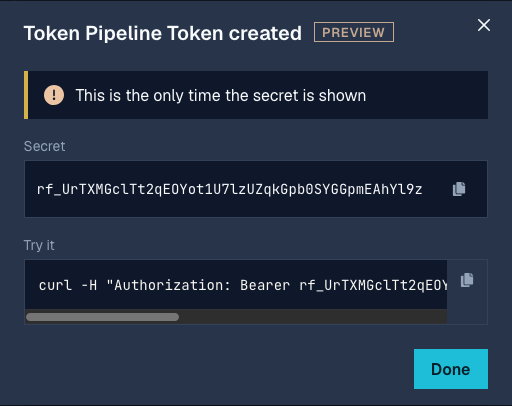
The secret is shown once, along with a starter curl command. The person who created a token, or a project Admin, can revoke it. Rotating a token issues a new secret with the same settings and revokes the old one in the same step.
The API. It lists, reads, creates and updates flags. Updates are a merge, so only the fields you send change. Validation reports every problem in a request at once, and each error includes a reason and a link to the relevant docs page. An update that doesn’t change anything writes nothing and adds nothing to the audit log.
Auditing and denials. Changes made with a token appear in the audit log under the token’s name. If a revoked, expired or out-of-scope token is used, each refused request is recorded on the token’s page with the time, address and reason, and the token’s creator is emailed, at most once a day per token.
Billing. If an organisation’s subscription lapses, its tokens are refused for reads and writes until the subscription is back in good standing. The tokens don’t need to be recreated afterwards.
Renamed environments. A token limited to selected environments stores their names. If one of those environments is renamed or removed, the token page marks it as “No longer exists”. The environment label editor warns you before a change that would affect an active token.
The Management API reference has the endpoints, and the CI recipes page has worked examples for enabling a flag after a deploy, ramping a rollout, a kill switch, and syncing a cohort list from a file.
Other changes and fixes
A few other changes came along for the ride with the release of 2.9 which are worth mentioning here too.
Group flag editor fixes. Saving a group flag from the main editor no longer wipes the per-environment cohort overrides set on individual environments. Renaming an environment now keeps its cohorts, hit counters and audience. And opening a second group flag no longer shows the first flag’s details.
Flag Caretaker. The Caretaker treats a flag with an audience the same way as one restricted by cohorts. It can be reported as stale, but it won’t get a removal prompt. Changing an attached audience’s rules resets the staleness clock for the flags using it.
Rollout slider. The single flag, group flag and environment editors all use the same rollout slider. The environment editor’s “Use traffic splits?” checkbox has been removed.
Project tabs. Flags, Audiences and Tokens share one page header, so the tab row no longer shifts when you switch between them.
Invalid cohort on project requests. Requesting a project’s flags with an invalid cohort now returns an error, the same as the single flag request does. Previously it returned an empty list.
Getting started
If you’re on Teams or Enterprise, the Audiences and Tokens tabs are on every project now. If you’re new to RocketFlag, sign up in the console. The free tier doesn’t need a credit card.
Audiences and the Management API are both previews. If something’s missing or doesn’t work the way you’d expect, contact us.